
Swapt MCP · Setup guide
Connect Swapt to Claude
Give Claude secure access to your Swapt account so it can read your analytics and build flows, landing pages, emails, and promotions for you — straight from a chat.
Swapt MCP server URL
https://swqr.link/mcp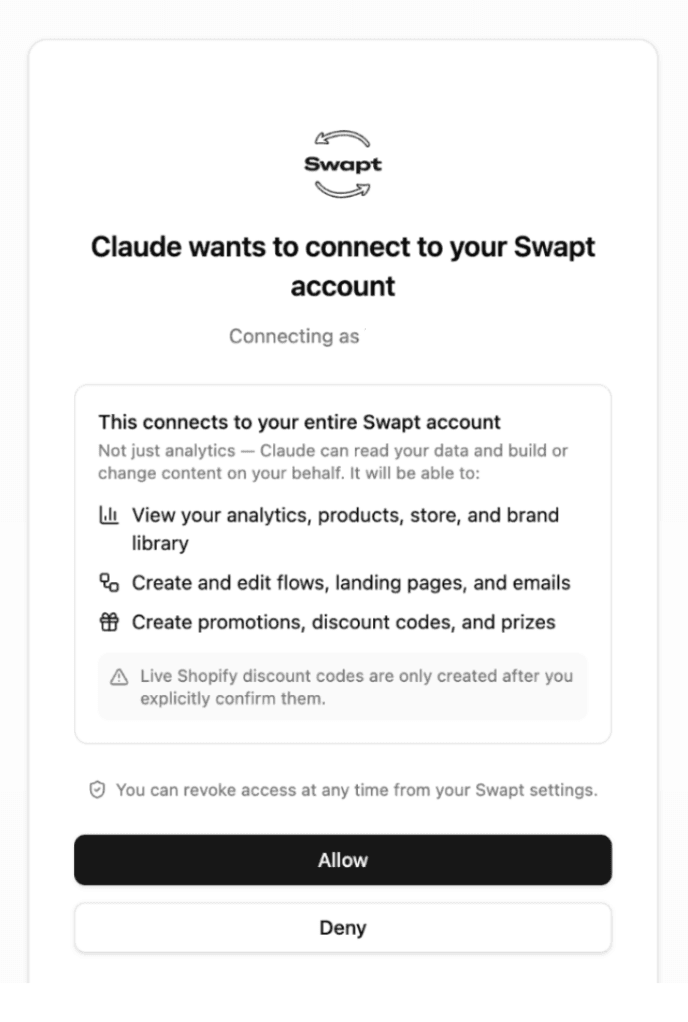
Once connected, Claude can
See your data
View analytics, products, store details, and your brand library.
Build experiences
Create and edit flows, landing pages, and emails from a single prompt.
Launch offers
Set up promotions, discount codes, and prizes — with your sign-off on live codes.
Setup
Seven steps, start to finish
Screenshots are from Claude on the web. The desktop app uses the same layout.
- 1
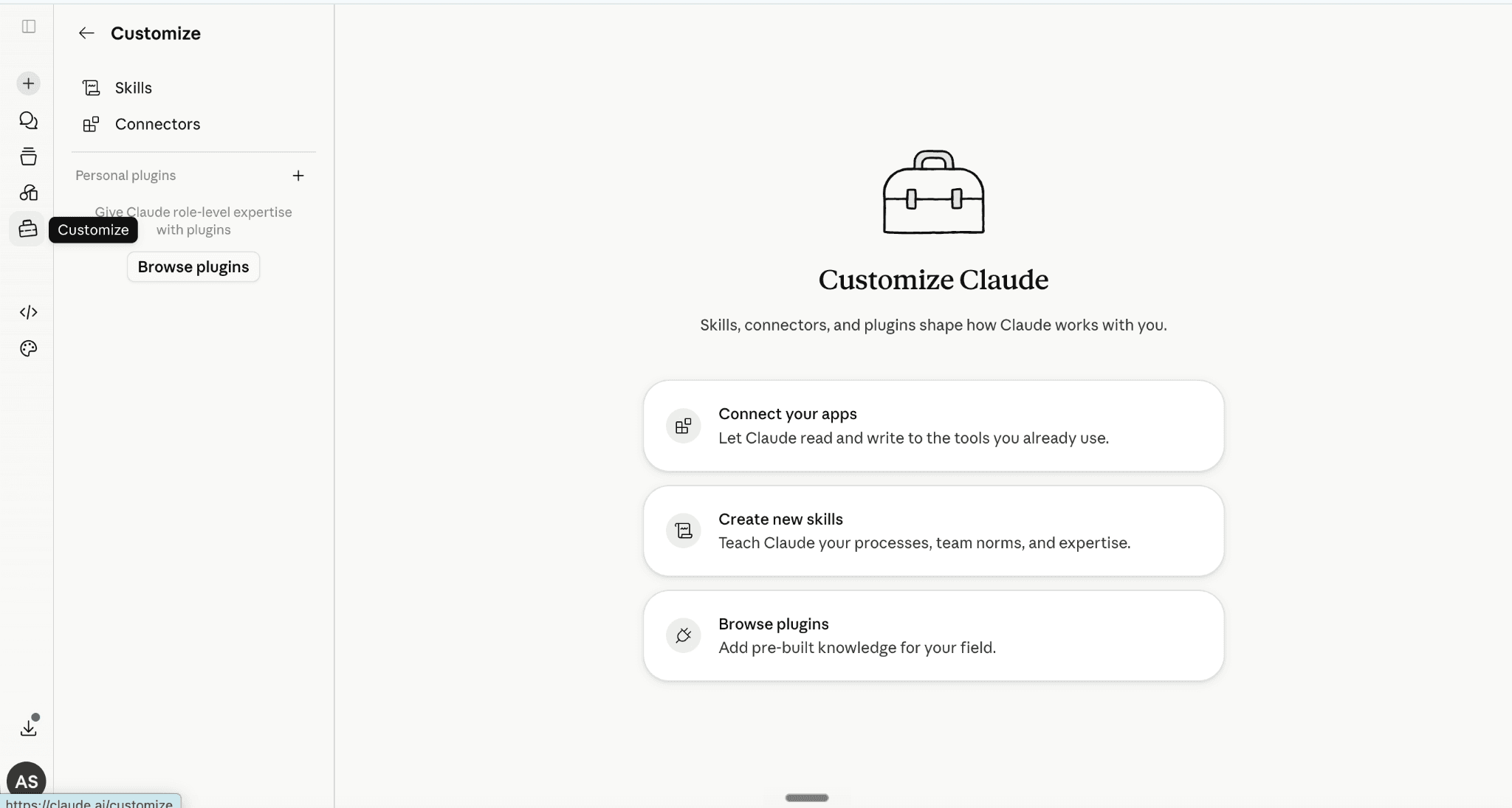
Open Customize in Claude
Sign in at claude.ai (or open the Claude desktop app) and click the Customize icon — the toolbox — in the left sidebar.
- 2
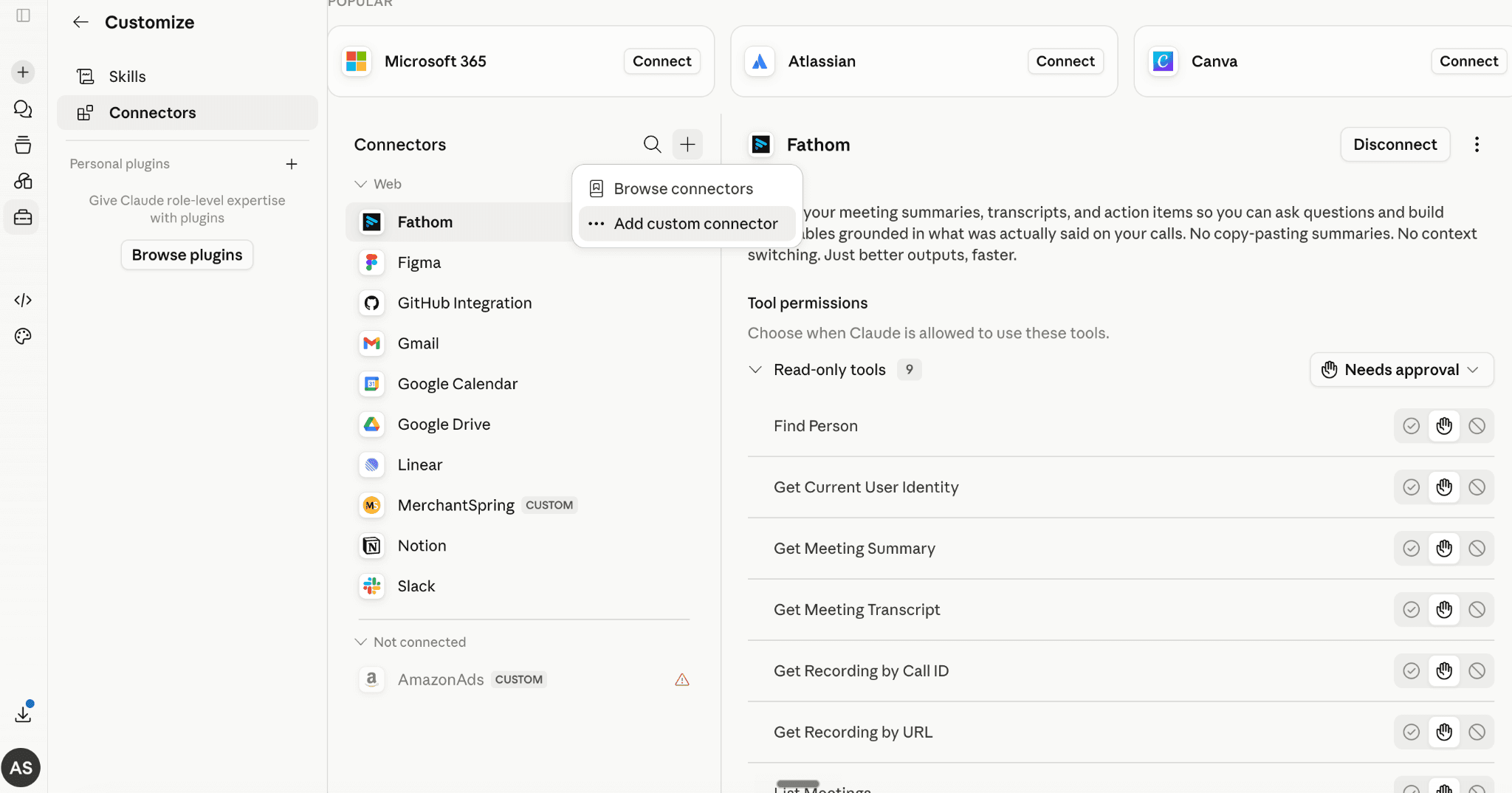
Add a custom connector
Select Connectors, click the + button next to the Connectors heading, then choose Add custom connector.
- 3
Enter the Swapt server URL
Name the connector Swapt and paste the server URL below. Leave the OAuth fields under Advanced settings empty, then click Add.
Remote MCP server URL
https://swqr.link/mcp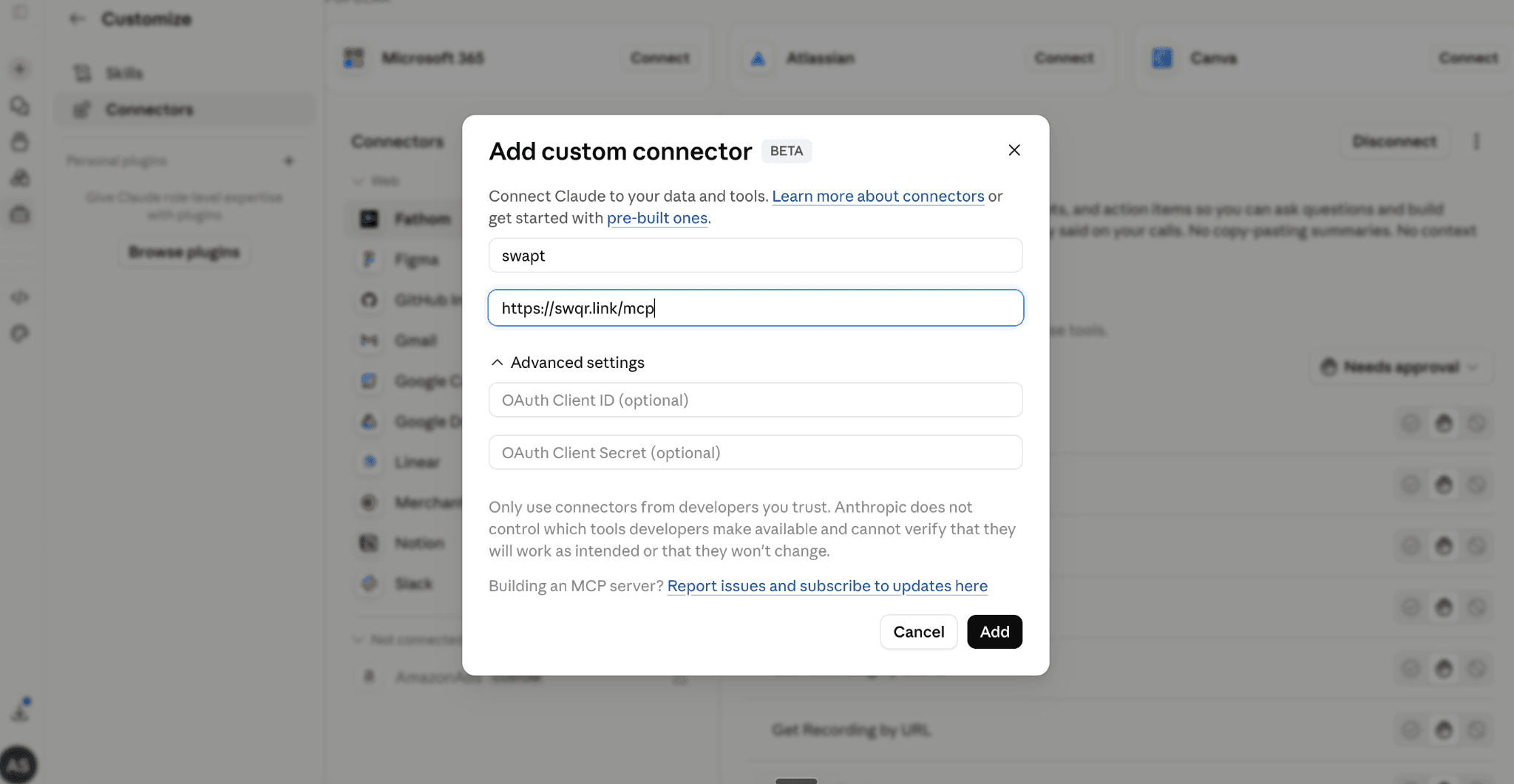
- 4
Press Connect
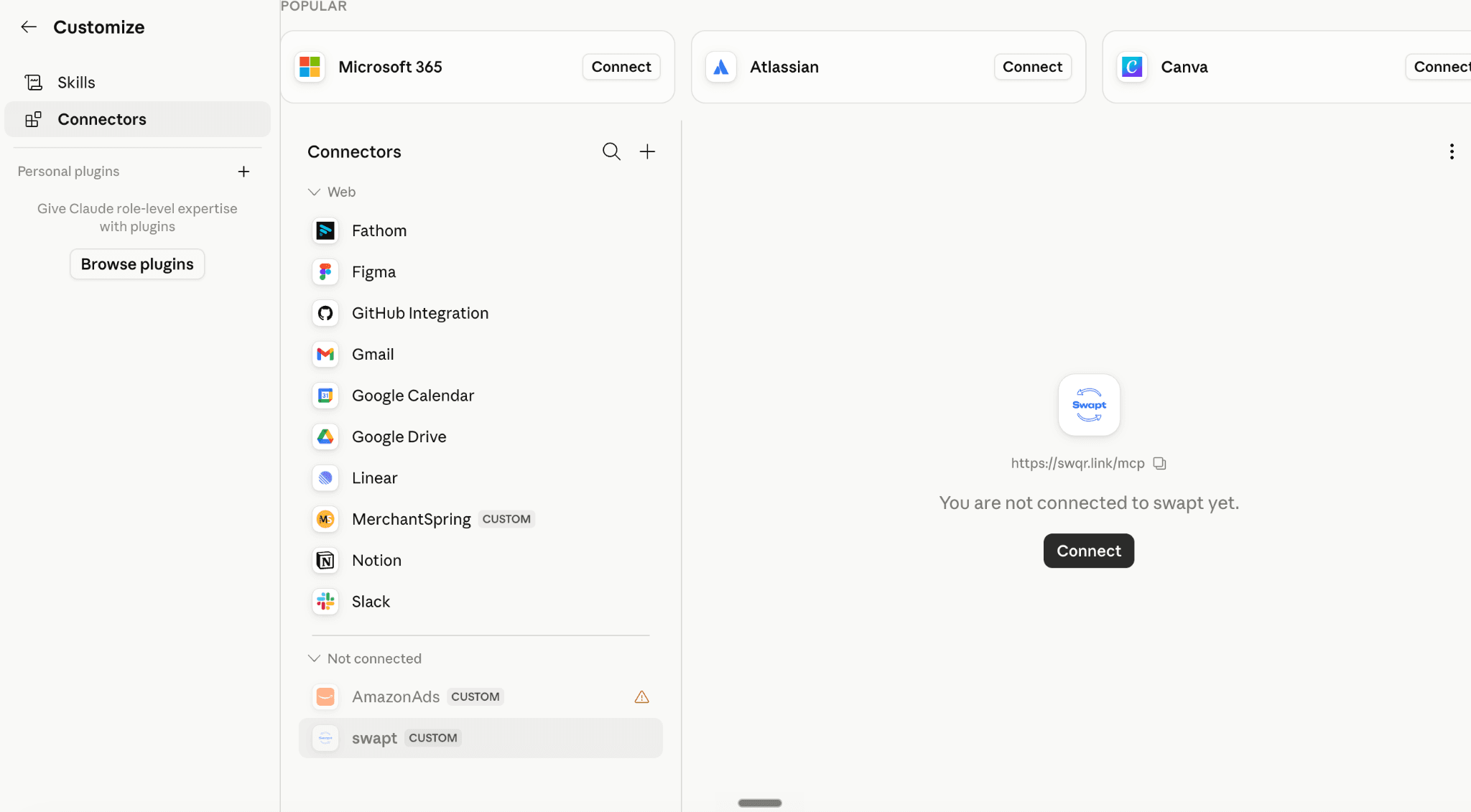
Swapt now shows up in your connector list under Not connected. Select it and press Connect.
- 5
Authorize your Swapt account
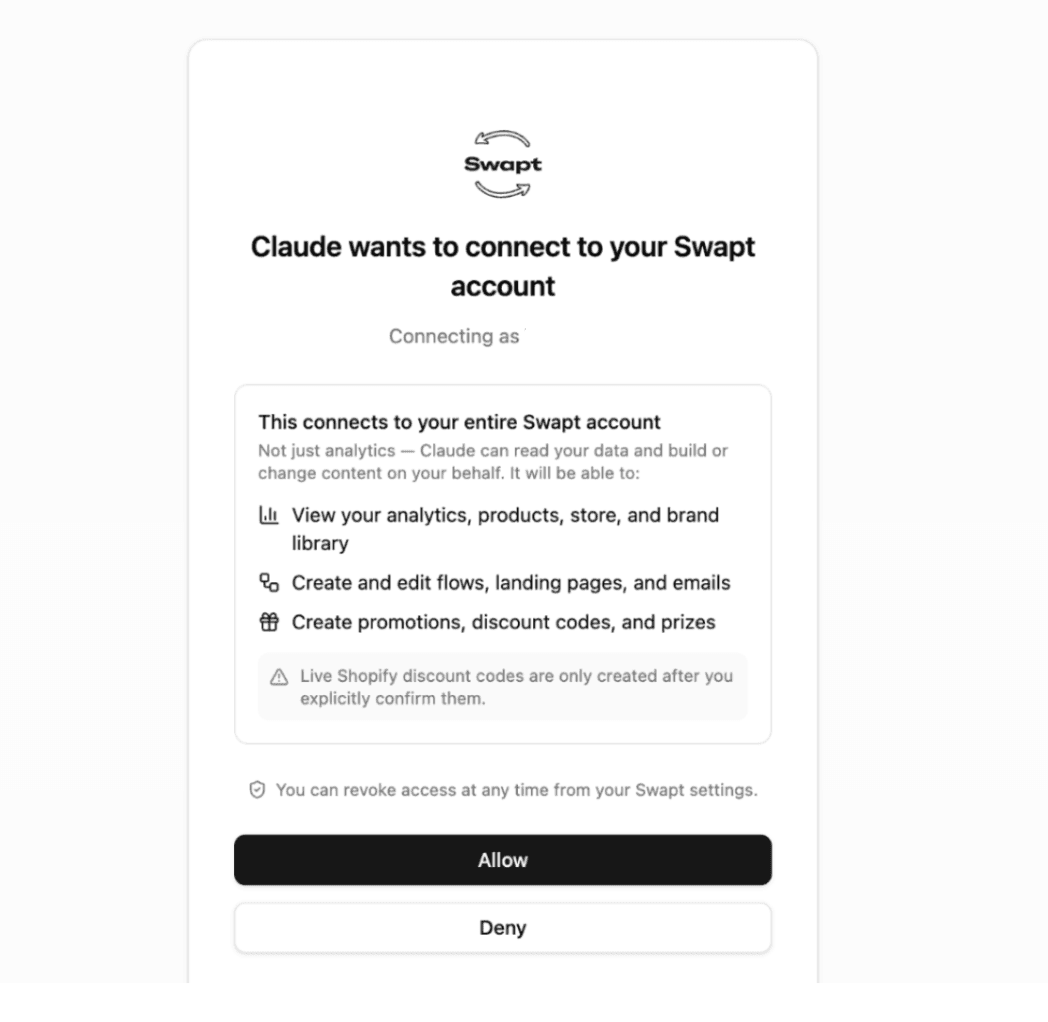
A Swapt window opens. Log in if prompted, confirm the brand you're connecting, and click Allow. Access is granted over OAuth — you never paste an API key into Claude.
You can revoke access at any time from your Swapt settings, or by clicking Disconnect on the connector in Claude.
- 6
Set tool permissions to Always allow
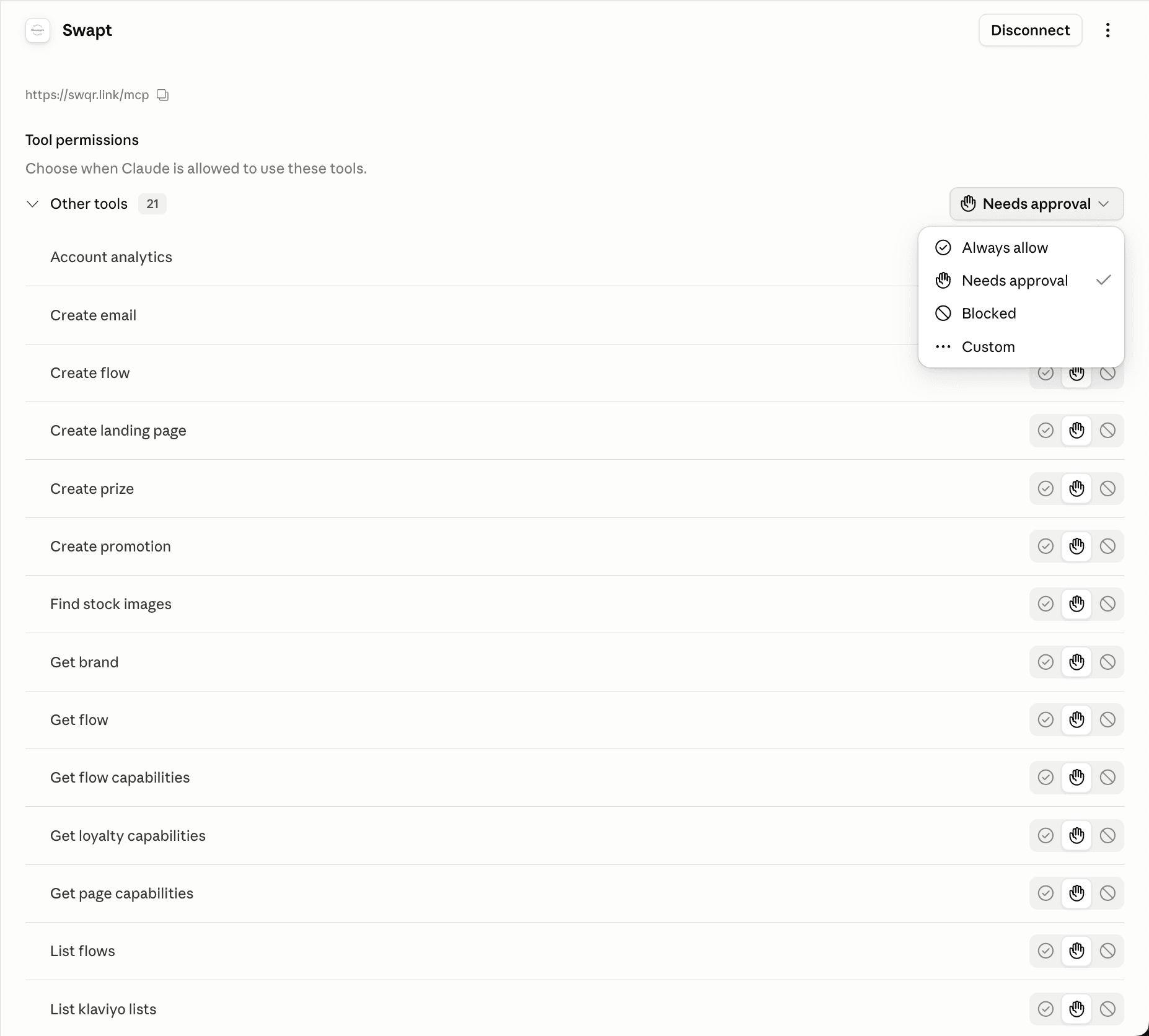
Back in Claude, open the Swapt connector. Under Tool permissions, open the dropdown next to Other tools and choose Always allow. This lets Claude work through multi-step builds without stopping to ask before every tool call.
Live Shopify discount codes are still only created after you explicitly confirm them — even with Always allow on.
- 7
Start building
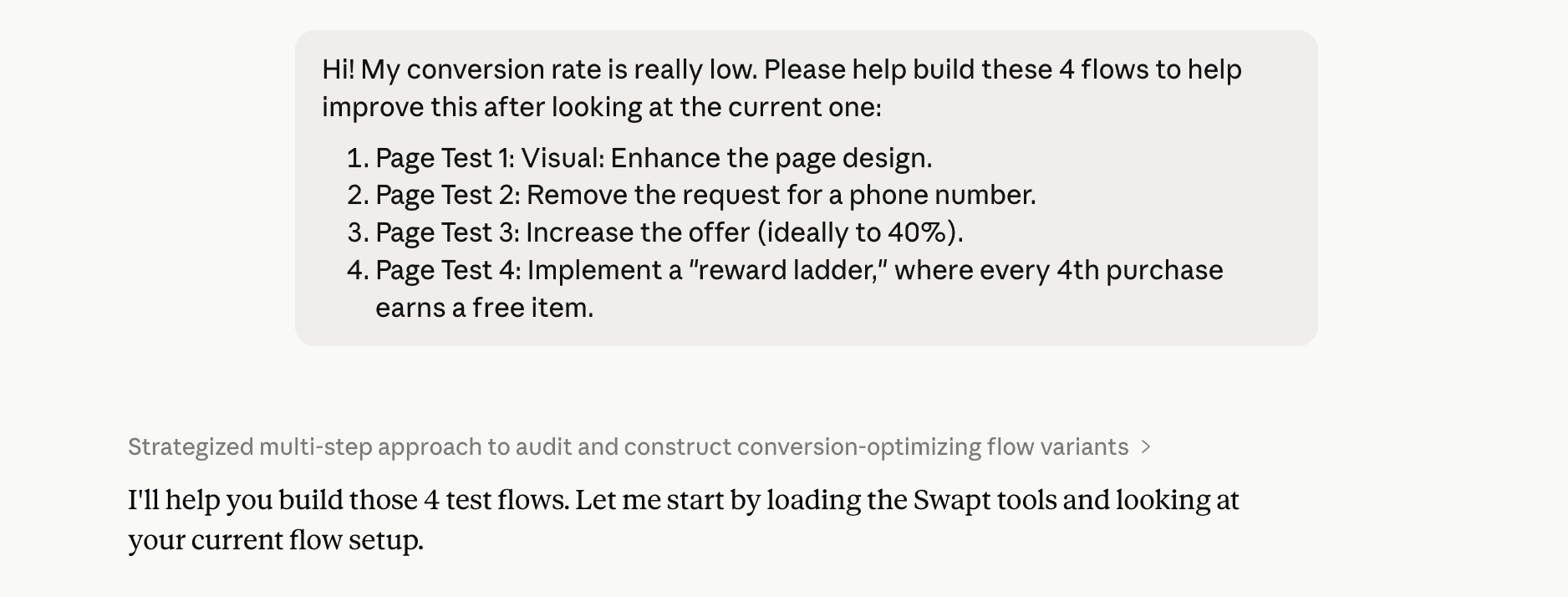
Open a new chat and tell Claude what you want. It will load your Swapt tools, look at your current setup, and get to work. Not sure where to start? Try one of the prompts below.
Prompts to try first
Troubleshooting
Common questions
Don't have a Swapt account yet?
Book a quick demo and we'll have you building with Claude the same day.